It’s likely that you have heard about Express LRS / ELRS. But what you have heard may have scared you away. It can be a bit complicated. We would like to help clear the air from all the smoke and make it reasonably simple for you.
Why Express LRS?
“Express” – It’s fast. Quick response to control movements.
“LR” = Long Range. 20 km + range is achievable. For line of sight pilots, that’s certainly not needed, but given the number of guys that claim that a radio glitch sent their plane a packing, the assurance that such a thing is not going to happen is very appealing.
“S” – It’s a system. Different, but that includes some advantages. Perhaps the biggest difference is the approach to binding. All popular radio control systems involve binding a transmitter to a receiver. That involves a code number that is shared between the two. The receiver will only listen to a signal that comes with that code number. Traditional line of sight systems have the system pick the number when binding is triggered. That involves putting the receiver into the bind mode, then having the transmitter bind to it by selecting a menu button. That is different for every model.
Express LRS uses one code number that is shared with the transmitter and all the models that can be flown with that transmitter. The code is generated from a binding phrase that you choose. Since it is a phrase, it’s easy for you to remember when you are setting up a new model.
There is another basic difference involving arming the system. That’s not done with traditional systems, but it is an option with Express LRS. It has mainly to do with some safety measures that are appropriate for flying long range drones. But it also enables a couple of things that are handy for line-of-sight flyers. Notably, dynamic power is only available when the system is armed. Only a small fraction of the total transmitter power available is required for line-of-sight flight. But picking a low value might leave you vulnerable to something blocking or interfering with the signal. With dynamic power you can set a maximum power that is way more that anything you are ever going to need, but the transmitter will use only the amount of power needed to maintain a good signal. There are then the side benefits of adding less clutter to the local radio frequency spectrum, and making your battery last longer.
When it comes to motivation, there’s another important one: Low cost! Open source software keeps that down. Even name brand transmitters and receivers are inexpensive. And there are extra low-cost ones. I recently (Sept. 2025) purchased a seven channel ELRS telemetry receiver for AU$16.
And, speaking of telemetry, it is fantastic! Most ELRS receivers will provide the signal strength received by the receiver as well as the telemetry received by the transmitter. But even better, it will give you a percentage figure for the amount of the signal that’s being received. Even the cheap receiver has a place to connect a voltage probe to include the total battery pack voltage in the telemetry. That is vital for knowing that you have enough power to keep flying.
What you don’t find with ELRS is stabilization. Drones typically have their own flight computer that does that, so it’s not needed in the receiver.
But the biggest downside is the complexity. So, let’s see if we can minimise that as much as possible!
What’s needed to set up Express LRS
The transmitter
Once off:
- Select the ELRS transmitter module, set the mode to “CRSF” .
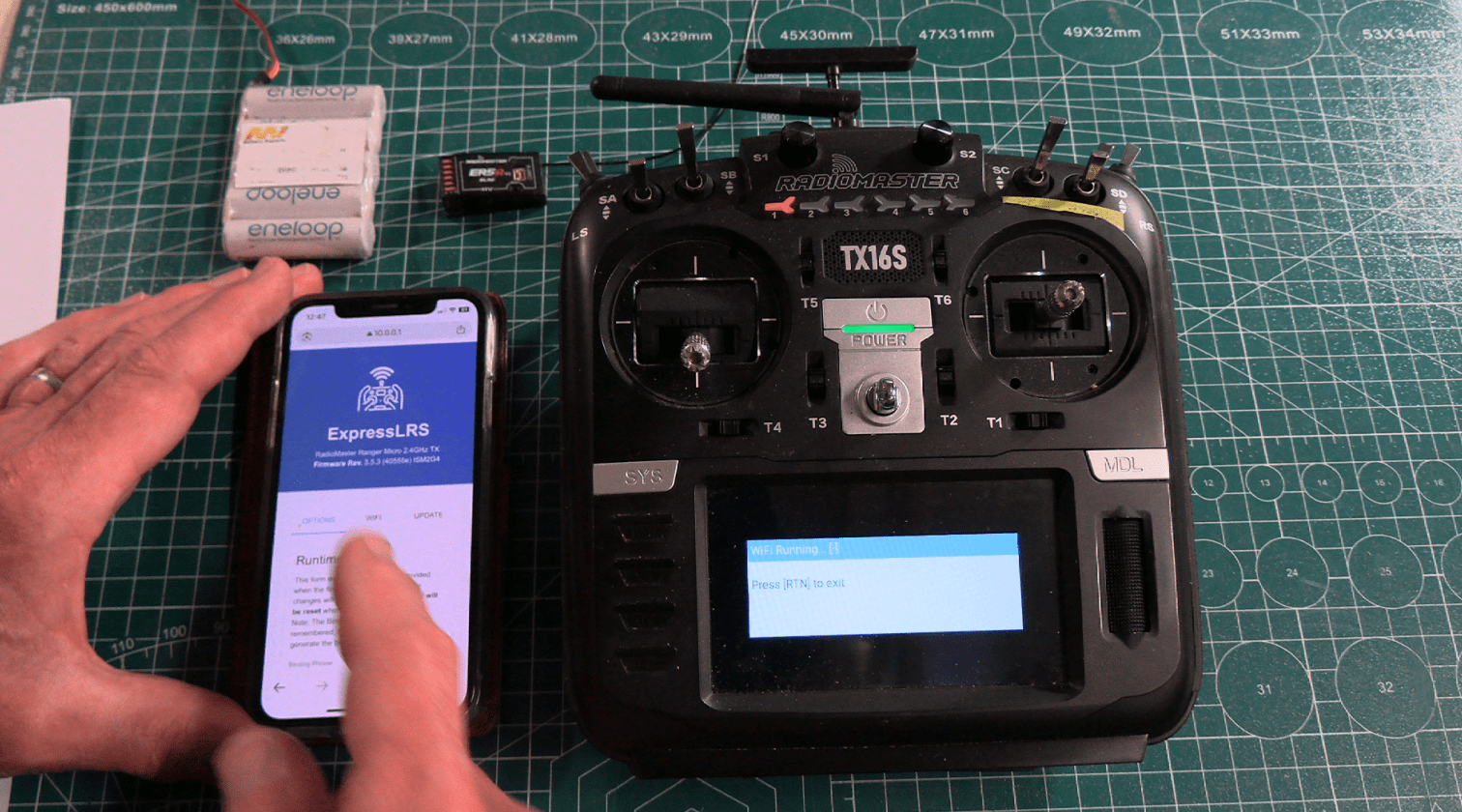
- Set the binding phrase. This is done using WiFi to connect the transmitter to a device.
For each model:
- Assign a unique model number in the transmitter model settings.
- In the transmitter ExpressLRS LUA script, select the power mode, eg. Dynamic power. This can be part of the template used to create a new model
- Assign a switch to channel 5 for arming. This can also be part of the template.
The receiver
Set the binding phrase, with WiFi, as above.
In the same app, assign the unique model number chosen above.
A detailed example of setting up Express LRS
Have the right equipment
- A transmitter with an ELRS module, either internal or attached to an external bay. In this example we will be using a transmitter that is running EdgeTX.
- An ELRS receiver
- A phone or computer that can use WiFi
- A power supply for the receiver – either through an ESC or directly from a battery
Prepare the transmitter
- Set the transmitter next to the computer or mobile device.
- Power on the transmitter
- Create a new model, or select one that you want to use with ELRS.
- Press the “MDL” button, then press the button for either the Internal RF or External RF – the one with the ELRS module.
- Select “CRSF” for the mode. ELRS uses the Crossfire protocols for communication.
- Select a unique Receiver ID. You will NOT be using the “Bind” button next to that.
- Press the “RTN” button twice.
- Press the “SYS” button, under “TOOLS” select “ExpressLRS.” If that isn’t there, update your LUA scripts. See our video “Firmware Update for Radiomaster TX16s and EdgeTX”
- Scroll down to “WiFi Connectivity” and click it. Select “Enable WiFi”.
- On your mobile device go to your WiFi settings.
- After a short wait, “ExpressLRS TX” should show up as a WiFi network. Select it. It will then connect, and after a bit longer (less than a minute) a web browser should open to the URL: 10.0.0.1 If that doesn’t happen, go to your web browser and type that in directly. Should it ask for a password, use “expresslrs”. Click “Join,” if that comes up. That will generally happen if you had to put in the password.
- In the browser window, note up at the top the firmware version number. It should be 3 point something. If it’s lower than that you will need to update the firmware.
- Scroll down and type in a binding phrase. Something you can easily remember, but not one that someone else might be using. Eight or more characters would be suitable – letters and/or numbers.
- Select the “Model” tab.
- Scroll down to the “Model Match” section, and tick the box “Enable Model Match”.
- Type in the receiver number that you selected when you set up your transmitter as the “Model ID.”
- Scroll down and click “Save.”
- Scroll back up to the top, and select the “Options” tab.
- Scroll down to the “Runtime Options” section.
- Type in the binding phrase exactly as you did for the transmitter.
- Scroll farther down and click “Save.”
- It will tell you that the upload succeeded. Click “Reboot.” That’s now done. On the transmitter, use the “Back” and “Exit” buttons at the bottom to return to the normal menu.
Optional arming with dynamic power
- In the transmitter, assign a switch to channel 5. I use the same switch that I use to activate the throttle. So, just put in a mix with the switch as the Source. Verify that there is the corresponding Output under the next tab.
- Verify that channel 5 goes to plus 100% when the throttle is active.
- Go to “SYS,” “TOOLS,” “ExpressLRS.”
- Scroll down to “TX Power, and select it.
- Select 250 mW for Max Power (given that you are doing line of sight flying).
- Next to “Dynamic,” select “Dyn.”
- The Fan Threshold can remain at 500 mW. It’s not needed at the power levels that we will use.
Prepare the receiver
- Place the receiver next to your mobile device or computer.
- Apply power to the receiver. Note that it will use the AETR channel order, so the ESC cable would plug into channel 3. Receiver will start flashing slowly.
- On the mobile device or computer, go to WiFi settings.
- After about a minute the receiver will begin flashing rapidly. Shortly after that you should see a new WiFi network on your mobile device or computer, “ExpressLRS RX.” Select it.
- As with the transmitter, soon a browser window should come up at 10.0.0.1 with the version number near the top. Again, it should be 3 point something or higher. Scroll down and put in the same binding phrase that you used for the transmitter.
- Go to the “Model” tab in the browser, tick “Enable model match,” put in the unique model number that you specified in the transmitter, and click “Save.” There will be a significant delay – maybe 20 seconds or so, then a window will pop up saying, “Set Model Match – Model Match Updated.” Click “OK.”
- Should you get error messages about something not being successful, it may be that you have lost your WiFi connection. That will not be the receiver, but may happen with your computer or mobile device where it sees that your normal WiFi is available, and it decides to go back to it. Just again select the ExpressLRS RX network and then you can continue.
- You can now disconnect the power from the receiver. It’s ready to go.
Telemetry
The telemetry is fantastic coming from an ELRS receiver. Most likely your receiver will have a voltage sampling lead that can either be soldered into the connection on the red power wire from the ESC, or be inserted into the binding plug of the battery at the red lead.
With Radiomaster receivers, “RxBt” is the voltage received at the receiver from the ESC or other power supply, unless another voltage is being received through the telemetry port. In that case it will be the voltage supplied at the telemetry port.
I like to display the voltage in the big part of the screen, and show the transmitter and receiver quality in the header. Transmitter quality is the quality of the signal from the transmitter as received by the receiver.
It may be that different brands of receivers will have slightly different naming conventions for their telemetry items.
Ready to Fly
Naturally you will need to set up the normal inputs, mixes, outputs and various other things in your transmitter. Most likely you started by duplicating an existing model to make that easy. Now, just power up the receiver in the plane, turn on your transmitter, select that plane, and everything should work. When connected to the transmitter, the light on the receiver will be solid, not blinking.
If the receiver doesn’t connect, go to “SYS,” “TOOLS,” “ExpressLRS,” and toggle “Model Match” off and on. Make sure the model number is the same as what you put into the receiver via WiFi. If you ticked “Enable Model Match” for the receiver, then “Model Match” must be “On” here in the transmitter.
Has this been helpful for you? Many hours went into research, testing, writing and video production. While we provide it all free of charge, it does cost us both time and money to do it. Whatever you might do to help us along the way would be greatly appreciated. Here’s a simple way to do that:

Thank you!
 RC Jim